SpanSearch vs NotebookLM

Are the sources already in, or has this round not started?

NotebookLM, which Google now calls Gemini Notebook, is for asking questions of material you added. It can also search the public web and write a report. Use SpanSearch when you still need a logged-in site, a sentence someone else can open, or time in the editor after the run.

Get started for free
The SpanSearch research workspace

Both can write the report

If the pile is ready, use NotebookLM. If you still have to find it, check a sentence, edit the result, or keep it out of a Google account, keep reading.

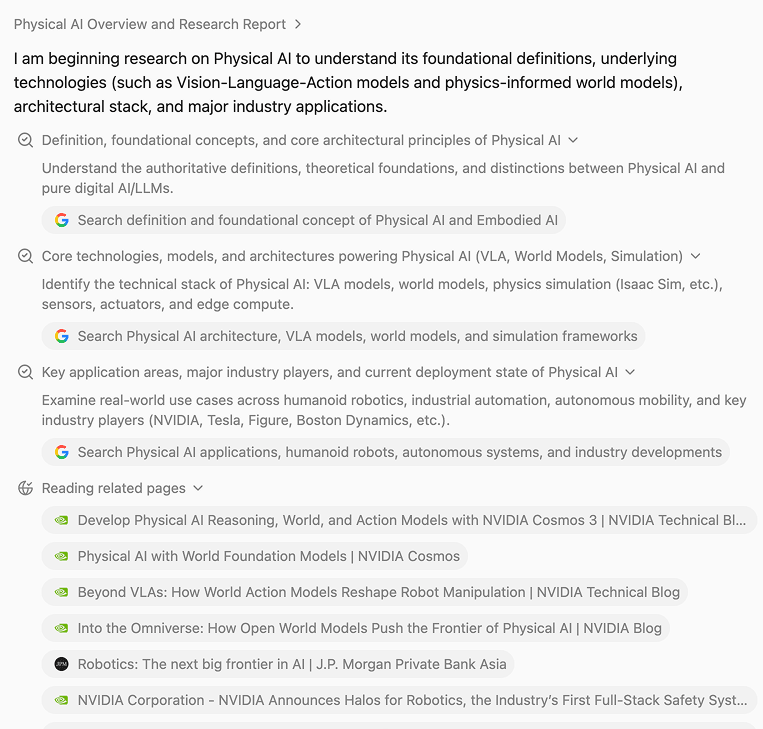
You still have to open sites behind a login

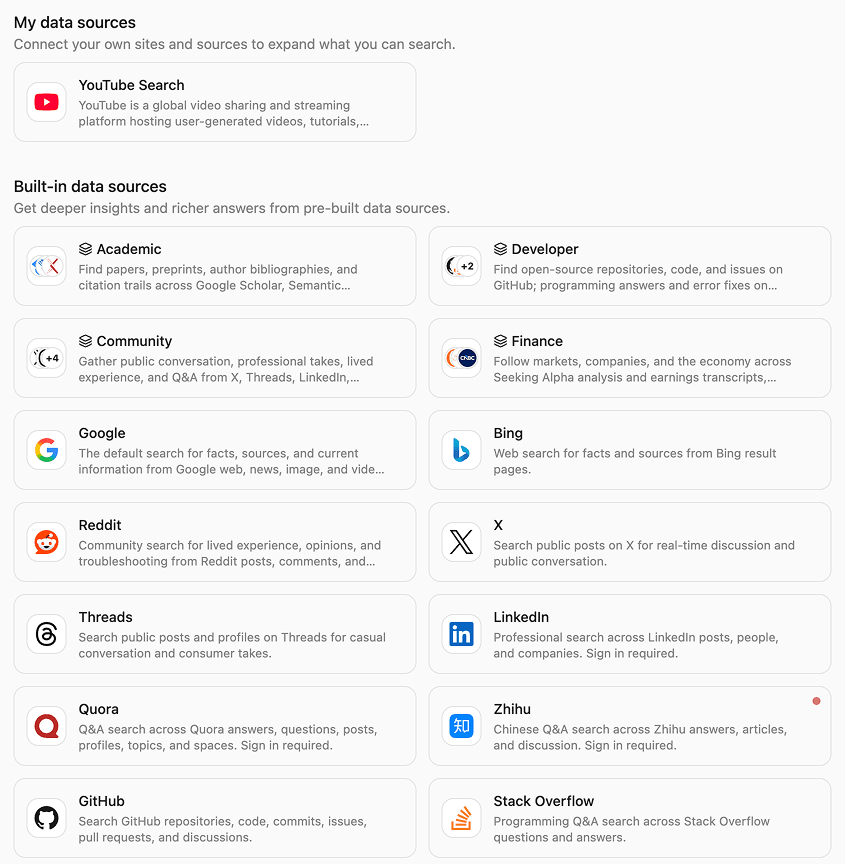
Papers and notes you already have can go straight into NotebookLM. This round also needs a forum, an internal doc, or search results, and some of those pages need a login. SpanSearch reads them with the session already in your browser. You do not save the page as a file first, and you do not give it the password.

Someone else has to open that sentence

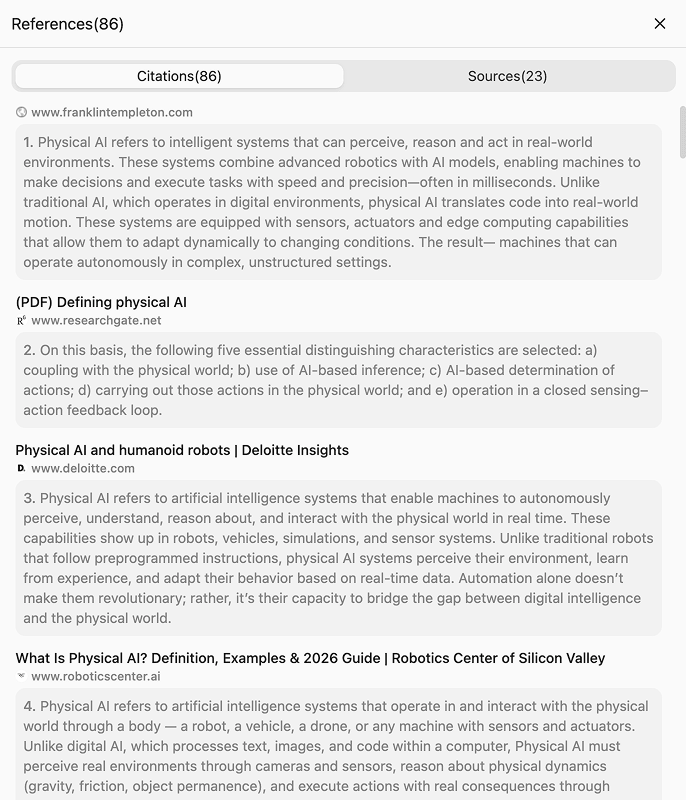
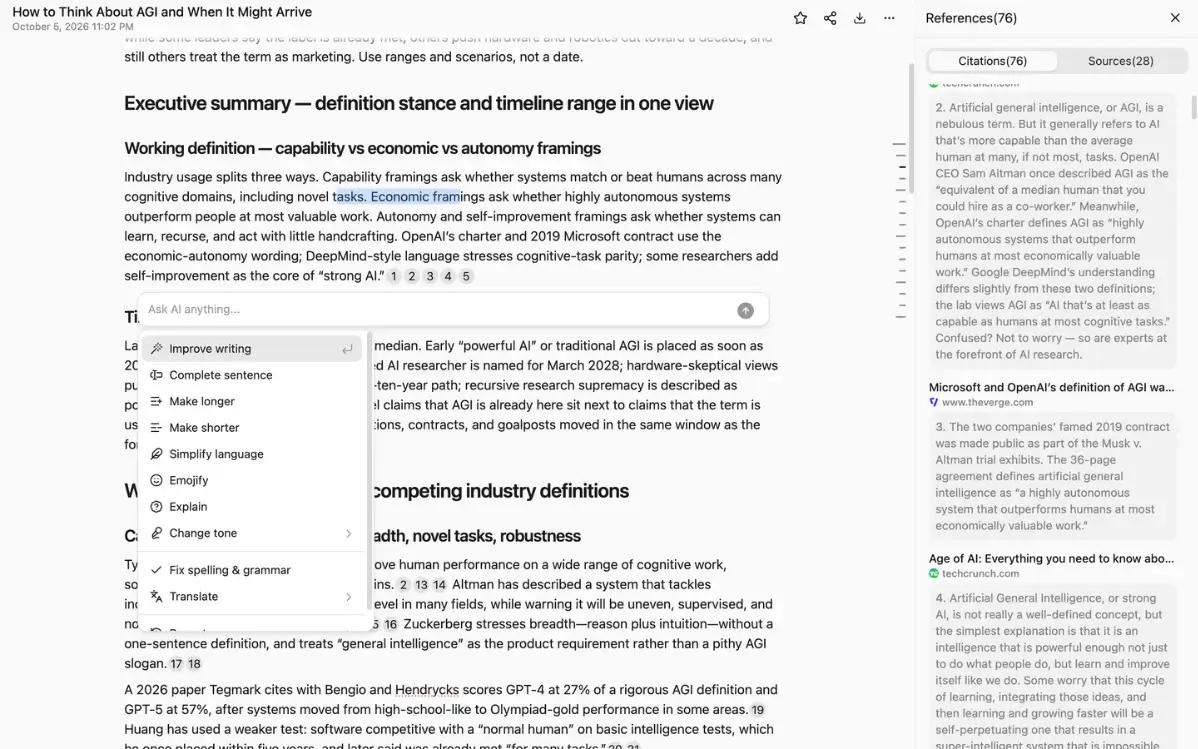
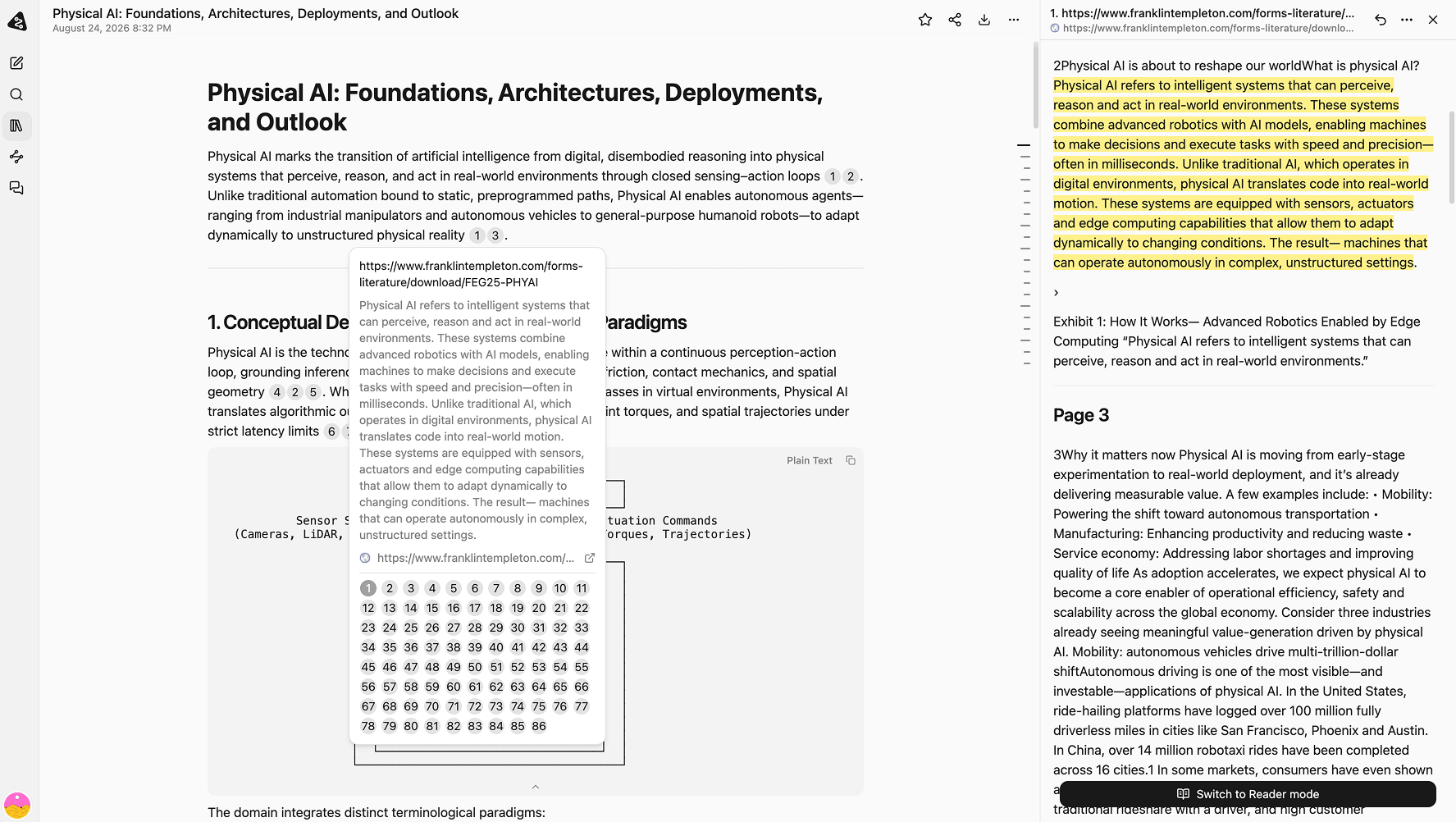
NotebookLM marks which source in the notebook a chat answer used. A deep-research report lists pages it looked at. When you hand the conclusion to someone else, SpanSearch points at the sentence. They open that passage and decide if your line stays.

You are editing this copy

NotebookLM’s next version is often a different object: audio, slides, a quiz, a map. If what you need to change is a sentence, a picture, or a board, SpanSearch keeps this copy in the editor.

It cannot go into a Google account

A NotebookLM notebook lives in a Google account. SpanSearch keeps the conversation, the library, and the sources you connect on this device. If the material cannot leave this computer, use SpanSearch.

Where people usually get stuck

If one of these is your situation, here is how SpanSearch handles it.

Connected sources, including pages behind a login

The page is still on the web

A search result, or an article that only opens after you log in, is a source as it stands. You do not download it, and you do not upload it into a notebook.

Get started for free
Find the pages, then read them

Read it, then write

Gather the relevant pages, then open and read them. The report uses what is on the page, not the title and not a blurb.

Get started for free
The cited passage beside the sentence

The passage is next to the sentence

Once the report is in the library, the source passage hangs next to the claim. Read it, translate or shorten it if you need to, then keep the line or drop it.
Get started for free
Editors included with SpanSearch

Keep editing this copy

When the run ends, you stay here. The editors are already in the product.

  • Text editor
  • Image editor
  • Vector image editor
  • Mind map editor
  • Whiteboard editor
Get started for free

Side by side

FeatureSpanSearchNotebookLM
What it is forResearch on sites you name, written so it can be checked and edited.Questions about material already in a notebook, or another format generated from it.
SourcesSites you name, including pages behind a login. No file to save first.Files, web pages, YouTube, and Google Drive you add. You can also search the public web and import what you want.
ReadingGather the relevant pages, then read them.Deep Research reads the public web and writes a report. A quick search gives titles and blurbs. You choose what to import.
CitationsThe claim points at the sentence. The passage stays beside it.Chat marks the source in the notebook. A report lists pages it looked at.
AfterwardEdit this copy in the text, image, vector, map, and whiteboard editors.Another audio overview, video, slide deck, quiz, or map.
Where it livesChats, the library, and sources you connect stay on this device by default.The notebook lives in a Google account.
Fits whenYou still have to go find it, someone has to open the sentence, or you still have to edit.The sources are in, and you want to ask, listen, or turn them into study material.

Which one, when

Use NotebookLM

  • The papers, slides, or meeting notes are in, and you want to ask them questions
  • You want an audio overview, a quiz, slides, or a generated map
  • Pointing at the source in the notebook is enough
  • A notebook in your Google account is fine

If the sources are in and the next step is to ask them, use NotebookLM.

Use SpanSearch

  • You still have to look, including pages that need a login
  • The person you send it to has to open the sentence behind the claim
  • You still have to edit the report, a picture, a map, or a board
  • The material has to stay on this computer

If you still have to find it, check it, edit it, or keep it on this device, use SpanSearch.

Start from a question the sources are not ready for

SpanSearch reads the sites you allow. Claims in the report open onto the passage, and the result stays there for you to edit.

Get started for free